Automation · · 4 min read
n8n AI agents: require Gmail approval before an email is sent
Build an email workflow that drafts with AI, shows a reviewer the proposed message and sends only after approval. Includes setup, expressions and a practical test checklist.
By Sociologix Editorial
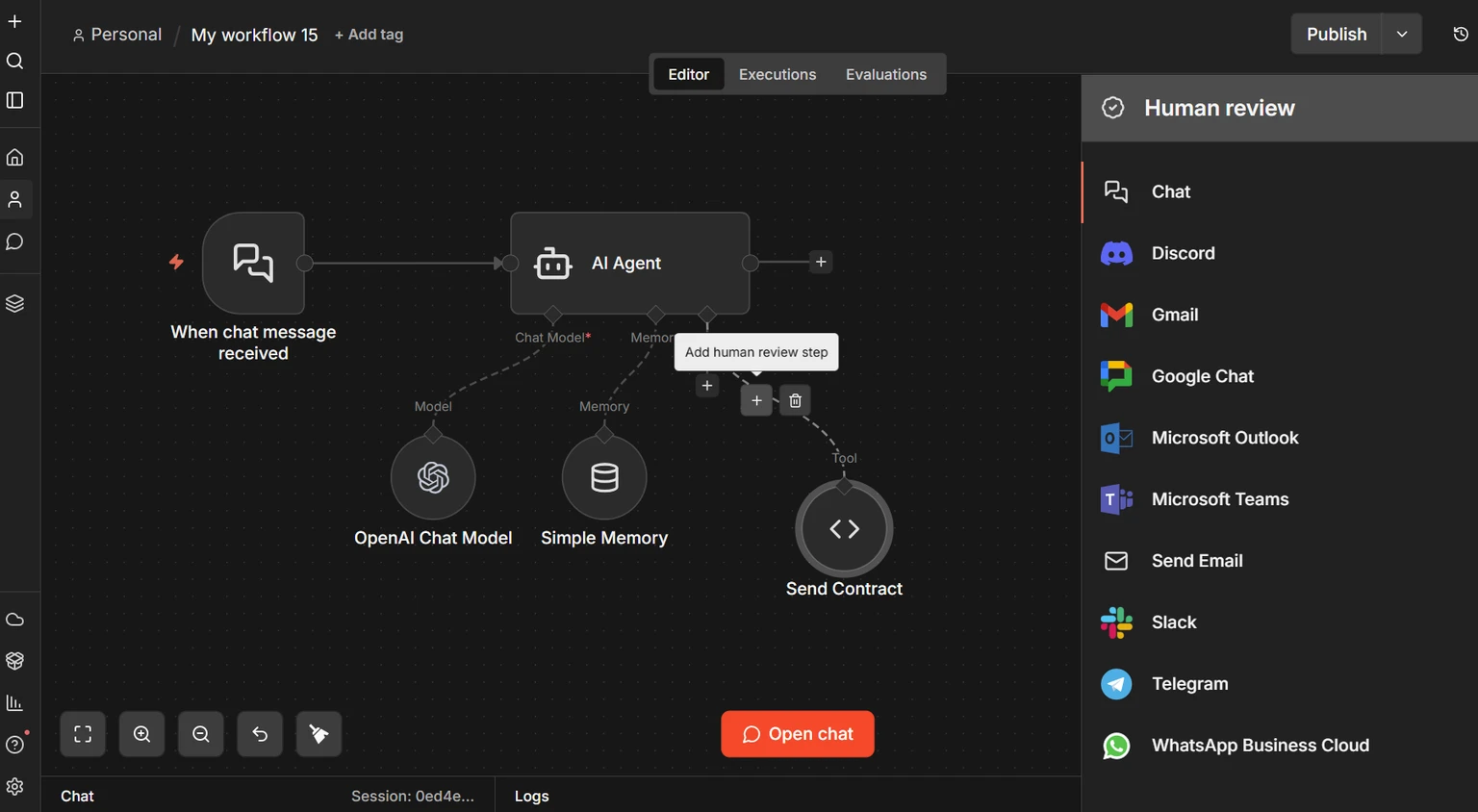
The workflow you will build
An assistant can draft a useful customer reply and still get a date, promise or recipient wrong. This walkthrough puts a person between the draft and the send action: chat request → AI agent → Gmail review → Gmail send tool.
This is a documentation-based guide checked against n8n’s official instructions on September 20, 2026. We have not executed this workflow in a connected n8n account. Use the checks below to validate your own setup before connecting customer communications. The cover shows n8n’s contract example, not a tested Gmail implementation. [6]
1. Connect the agent and your test mailbox
Start with an n8n instance, a supported chat model and its credentials, and a Gmail test account you control. Connect a Chat Trigger to an AI Agent, then attach the model to the agent’s Chat Model connector. Keep the prompt sourced from the connected chat input; this walkthrough uses a single request. [4]
For Gmail credentials, n8n Cloud supports managed Google sign-in. Self-hosted instances use a custom Google OAuth configuration: create the Cloud project and OAuth client, enable the Gmail API, and configure the callback and credentials using n8n’s instructions. Store credentials in n8n’s credential manager. [5]
2. Make the sending tool deliberately narrow
Configure a Gmail tool named SendReviewedEmail: Resource = Message, Operation = Send, Email Type = Text. Set To to your own test inbox as a fixed value, and leave CC, BCC and attachments unset. Turn off Append n8n attribution so the default footer does not change the reviewed body. Subject and Message will contain the proposed reply. [2]
Use the star control on Subject and Message to let the model populate them, or paste the expressions below into those fields separately. The star control replaces an existing manual definition. Keep To fixed. $fromAI() supplies hints to an agent-connected tool; it does not look up a pre-existing field with the same name. [3]
Subject field:
{{ $fromAI('subject', 'A concise subject for the requested test email', 'string') }}

Message field:
{{ $fromAI('body', 'Plain-text email using only facts supplied in the request', 'string') }}
3. Put approval on the tool connection
Open the AI Agent’s Tools connector. In the Tools Panel, select Gmail under Human review. Connect SendReviewedEmail to that review step’s tool connector. Remove any separate direct connection that would expose the sending tool without review. An approval executes the proposed call; a denial cancels it. [1]
Configure the review email with Resource = Message and Operation = Send and Wait for Approval. Its To address is the reviewer’s inbox; its subject can be “Review test email”. Select Type of Approval = Approve and Disapprove, since the default offers approval only. These settings belong to the review email, not the final outgoing message. [2]
4. Show the reviewer what will happen
Place the following in the review step’s Message field. Replace the placeholder with the same fixed test recipient used by SendReviewedEmail. $tool.name identifies the canvas node, while $tool.parameters exposes the proposed tool inputs, including the model-filled fields. Fixed settings are not guaranteed to appear in that object, so show the fixed recipient explicitly. [1]
Proposed tool: {{ $tool.name }}
Fixed test recipient: REPLACE_WITH_YOUR_TEST_INBOX
Proposed message fields:
{{ JSON.stringify($tool.parameters, null, 2) }}
5. Explain approval and rejection to the agent
Add review instructions to the AI Agent’s System Message. The tool wiring enforces the pause; the prompt explains how the agent should respond. Here is our suggested starting prompt. [1] [4]
You prepare test emails from facts supplied by the user.
Ask for clarification when a required fact is missing.
SendReviewedEmail requires human approval.
If a reviewer declines, acknowledge the rejection and stop.
Do not retry a declined email without a new user request.
Report a successful send only after the tool reports success.
6. Verify both paths before using real recipients
Try this request in the test chat: “Use SendReviewedEmail to send a test email confirming that the test workshop is Tuesday at 10 a.m. Use the subject Workshop test.” Then run these checks in separate executions. They are acceptance criteria for your implementation, not results we claim to have observed.
- Waiting: leave the review unanswered. Confirm the outgoing message has not reached the test recipient.
- Approval: inspect the recipient, subject and complete body. Approve once, then compare the received message and Gmail Sent record with the reviewed content.
- Rejection: start a fresh request and choose Decline. Confirm no final email is sent and the agent does not retry the same action.
- Missing information: omit a required date. Check whether the agent asks a question instead of inventing it.
- Repeat execution: replay a request and inspect for duplicates. Approval alone is not a duplicate-prevention mechanism.
Troubleshoot the connection before rewriting the prompt
If no review appears, inspect which tool connection the agent actually used. If the review lacks message fields, check the sending tool’s AI parameter configuration and ensure the expressions are in the review step. If approval produces no email, inspect the tool execution and Gmail credential error rather than trusting the assistant’s prose.
For production, we recommend recording a request ID, review decision and returned email ID in your application. Add a duplicate check before retries, define who handles unanswered reviews, and keep approval links within the intended reviewer group. Those are additional implementation tasks; this small workflow does not provide a complete customer-care system.
Sources & further reading
Build a customer-care workflow your team can review.
Bring Sociologix one repeatable task. We can scope the agent, integrations, approval controls and operational checks around the way your business works.
Talk to Sociologix