Automation · · 5 min read
n8n AI Workflow Builder: draft a project-intake lab
Turn a bounded prompt into a reviewable intake workflow, inspect the generated nodes, and replay synthetic requests before connecting business systems.
By Sociologix Editorial
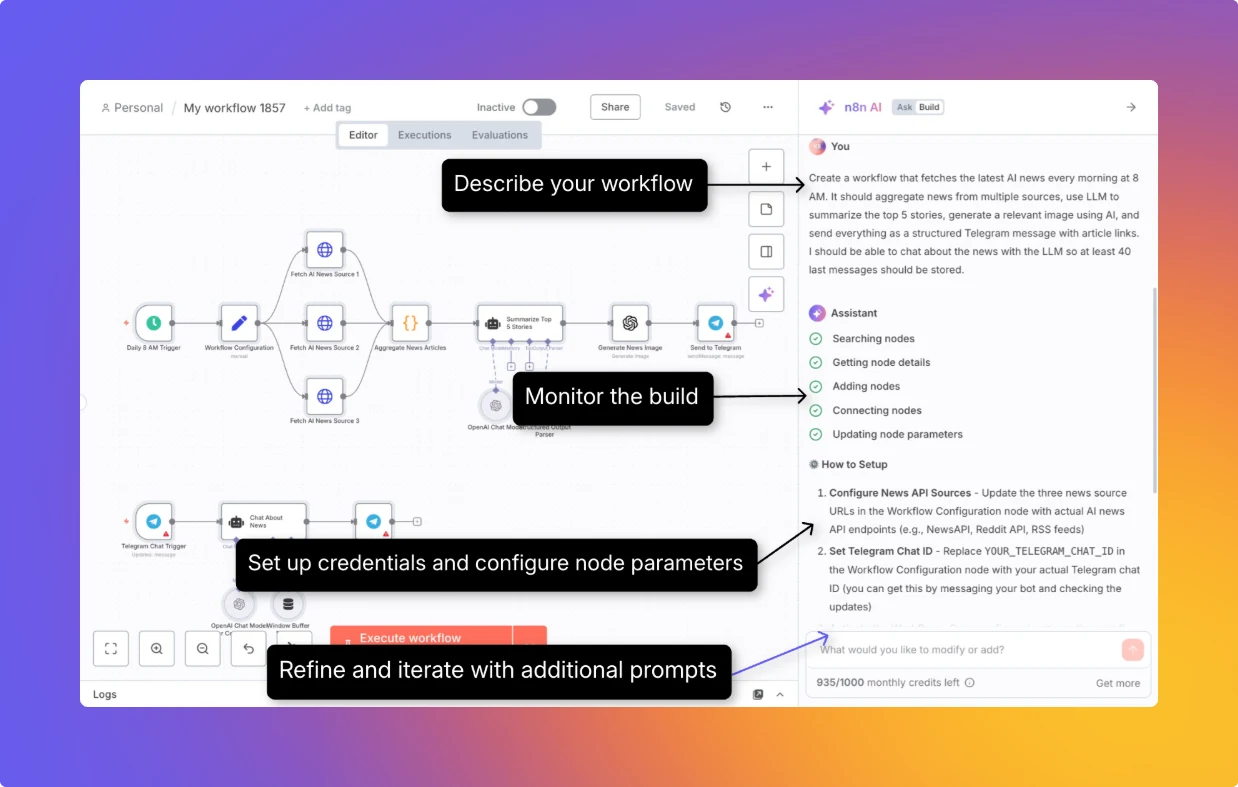
Use AI to draft the workflow, then inspect what will run
This AI-assisted editorial walkthrough is based on official n8n documentation checked November 21, 2026. The prompt and intake fixture below are proposed examples. No workflow was generated, executed or published in an n8n account for this article.
AI Workflow Builder can create, refine and debug workflows from natural-language descriptions. It selects and configures nodes, but your team still needs to inspect their behavior. Start with a small project-intake lab that produces a review status rather than contacting a customer. [1]
In this design, AI helps construct the workflow. The resulting lab uses deterministic core nodes and does not need a runtime model call. A polished canvas alone does not establish that its field mappings or branches are correct.
1. Start with a deliberately small brief
Use a workspace where the builder is available under your current account and plan. Check the live plan details rather than assuming a particular allowance or Community Edition availability. The pricing page currently uses Assistant terminology, so confirm what your workspace includes. [8]
Create a separate draft workflow and give the builder this bounded prompt. We ask for one Manual Trigger because it starts from Execute Workflow and does not add an automatic trigger. [2]
Create a project-intake lab using only built-in core nodes.
Use one Manual Trigger, then an Edit Fields node named Demo Request.
Demo Request holds requestId, contactEmail and projectSummary as strings.
Preserve the original values. Create trimmed copies for required-field checks.
Route to ready_for_scope_review only when all three trimmed values are nonempty.
Otherwise route to needs_information. Preserve requestId on both outputs.
End each branch with an Edit Fields node containing the status.
Do not add a model, AI Agent, webhook, schedule, email, CRM, HTTP Request,
sub-workflow or Code node. Do not publish anything.
Explain the conditions and field mappings for manual inspection.
2. Inspect nodes and field mappings before execution
After generation, read every node and connection. The intended path is Manual Trigger, Demo Request, required-field checks, then one of two status outputs. Refine or manually correct any extra capability before executing the lab.
In Demo Request, use Edit Fields (Set), choose JSON Output and enter the fixture below as fixed JSON. This node can add or overwrite fields; inspect Include in Output and related field-retention settings so the original request remains available downstream. [3]
For each required trimmed value, inspect the If condition’s String comparison and choose is not empty. Combine required checks with AND. A nonempty string check only establishes presence; it does not verify email syntax or deliverability. [4]
{
  "requestId": "demo-intake-001",
  "contactEmail": "request@example.com",
  "projectSummary": "A six-page website with a project inquiry form."
}
3. Run a repeatable acceptance check
These are proposed checks, not observed results. First confirm the draft contains only the requested core nodes. A manual execution can still call external services if such nodes are connected. Execute workflow runs the full manual flow; Execute step may also run preceding nodes needed to supply input. [5]
Run each case separately and inspect the actual items at both branch endings. Keep a short record of the input, selected route and preserved request ID. Correct mappings when the observed output differs from the intended status.
- Complete fixture: expect ready_for_scope_review and the unchanged demo-intake-001 identifier.
- Empty projectSummary: expect needs_information, with no invented scope or price.
- Whitespace-only contactEmail: expect needs_information after trimming. If it passes, inspect the normalization expression.
- Change requestId and rerun: verify the new ID reaches the output rather than a fixed value copied from the first example.
4. Pin fixtures carefully while refining
To reuse a known input, execute the fixture node and select Pin data in its OUTPUT view. For edits, switch OUTPUT to JSON, choose Edit, update the data and Save. The saved values become the pinned fixture. [6]
Pinned data replaces that node’s output on later manual runs. It can conceal a change you made to Demo Request itself: unpin when you want to test the node’s current configuration. Production executions ignore pinned data, so pinning is not a production access control or a way to disable business actions. [6]
Keep the fixture fictional. The builder documentation says prompts, workflow definitions and loaded mock execution data are sent to its LLM. It excludes credential details and past executions, but that does not make information pasted into a prompt private from the builder service. [1]
5. Treat refinement, publishing and runtime AI separately
Builder creation or modification messages consume interactions; its Execute and refine action also counts. Use specific correction requests, such as preserving the original summary alongside its trimmed copy. This avoids treating an unlimited chat loop as a development plan. [1]
Current n8n documentation distinguishes autosaved drafts from published versions. Production uses the published version. This manual-only lab should remain a draft. For a later live intake flow, introduce the production trigger and business integrations deliberately, then verify the final publishing status and an actual test event. [7]
If you add an AI Agent to summarize briefs later, evaluate that model separately using incomplete and conflicting requirements. Keep generated scope suggestions separate from approved pricing and agreements. The builder’s success at assembling nodes is not a test of a runtime model’s judgment.
Sources & further reading
Turn your intake process into a workflow your team can review
Sociologix can help map your project-request fields, build a staged automation and define the checks required before connecting customer systems. Bring a sample request and the handoffs you want to improve.
Talk to Sociologix