Digital experiences · · 6 min read
Test an AI-built lead form with Playwright before you launch
Check that a failed submission preserves the inquiry, a retry sends the intended payload, and success appears only after the expected response.
By Sociologix Editorial
Give the AI builder an observable definition of done
An AI coding assistant can produce an attractive contact form while leaving its failure behavior unfinished. The important question is what happens when a visitor submits a real inquiry and the endpoint returns an error. A small browser test makes that requirement explicit before a design review becomes a launch decision.
This AI-assisted editorial tutorial was checked against official Playwright documentation on September 25, 2026. The configuration and test below passed JavaScript syntax checks. They are an adaptable example, not an executed test of Sociologix’s production form or proof of CRM delivery.
1. Agree on the form contract first
For this example, ask your AI builder to implement a local /contact page with labeled Work email and Project brief fields, a Request a quote button, one persistent status region, and an alert that appears on failure. Keep submission disabled while a request is pending. Preserve both fields after failure and let the visitor retry.
The example contract sends exactly { email, brief } as JSON to POST /api/leads. A 503 response shows an alert containing Please try again. A 201 response contains a reference that appears in the status region, and clears the alert. These are proposed application requirements, not Playwright defaults. Adapt the test to your approved schema, required consent fields and customer-facing copy.
Use associated labels and button roles as locators. They make the test describe the interface a visitor operates, without depending on styling classes that an AI design revision might replace. Role locators are useful feedback, but do not replace a full accessibility audit. [1]
2. Set up a local test target
In your application repository, run npm init playwright@latest, choose JavaScript, keep the tests directory, and install the offered browsers. Review any existing configuration before merging the example into playwright.config.js. The initialization command adds Playwright to an existing project. [2]
This configuration assumes a Vite application with an npm run dev script. Change the startup command for another framework. Playwright can start the web server and resolve relative navigation against baseURL. Confirm that an already-running local server belongs to the application under test. [3]
The two projects exercise a wide and a narrow Chromium viewport; they do not represent two physical devices. Service workers are blocked for this network-mocking test so they cannot hide requests from the route handler. [4][5]
import { defineConfig } from '@playwright/test';

export default defineConfig({
  testDir: './tests',
  use: {
    baseURL: 'http://127.0.0.1:5173',
    serviceWorkers: 'block',
  },
  projects: [
    { name: 'desktop', use: { browserName: 'chromium',
      viewport: { width: 1440, height: 900 } } },
    { name: 'narrow', use: { browserName: 'chromium',
      viewport: { width: 390, height: 844 } } },
  ],
  webServer: {
    command: 'npm run dev -- --host 127.0.0.1 --port 5173 --strictPort',
    url: 'http://127.0.0.1:5173',
    reuseExistingServer: !process.env.CI,
  },
});
3. Mock the failure, then the recovery
Save the next example as tests/lead-form.spec.js. Register the route before navigation. route.fulfill supplies the response for the matched request instead of contacting that endpoint. Here, the first attempt fails and the second returns a synthetic reference. Keep this exercise on a local application with test-only backend configuration. [6]
The test also checks the submitted JSON. A convincing success message is not enough if the request omitted the project brief. Exact payload assertions will deliberately fail when the implementation adds a field: review whether the approved contract should change instead of automatically weakening the assertion.
Use awaited, retrying assertions for changing UI state. toContainText and toHaveValue wait for their expected conditions rather than relying on an arbitrary sleep. The ordinary counter and payload assertions then inspect the requests observed during this scenario. [7]
import { test, expect } from '@playwright/test';

test('keeps a failed inquiry and confirms a successful retry', async ({ page }) => {
  let attempts = 0;
  const submitted = [];
  await page.route('http://127.0.0.1:5173/api/leads', async route => {
    const request = route.request();
    if (request.method() !== 'POST') return route.abort();
    submitted.push(request.postDataJSON());
    attempts += 1;
    await route.fulfill({
      status: attempts === 1 ? 503 : 201,
      json: attempts === 1
        ? { error: 'temporarily_unavailable' }
        : { reference: 'TEST-1042' },
    });
  });

  await page.goto('/contact');
  const email = page.getByLabel('Work email', { exact: true });
  const brief = page.getByLabel('Project brief', { exact: true });
  const submit = page.getByRole('button', { name: 'Request a quote', exact: true });
  await email.fill('qa@example.com');
  await brief.fill('Test inquiry: automate a sample intake process.');
  await submit.click();

  await expect(page.getByRole('alert')).toContainText('Please try again');
  await expect(email).toHaveValue('qa@example.com');
  await expect(brief).toHaveValue('Test inquiry: automate a sample intake process.');
  await expect(page.getByRole('status')).not.toContainText('TEST-1042');
  expect(attempts).toBe(1);
  await expect(submit).toBeEnabled();

  await submit.click();
  await expect(page.getByRole('status')).toContainText('TEST-1042');
  await expect(page.getByRole('alert')).toBeHidden();
  expect(attempts).toBe(2);
  expect(submitted).toEqual([
    { email: 'qa@example.com', brief: 'Test inquiry: automate a sample intake process.' },
    { email: 'qa@example.com', brief: 'Test inquiry: automate a sample intake process.' },
  ]);
});
4. Read the result as evidence with a boundary
Run the command below after adapting the form and configuration. With these two projects, a passing run should report two cases: the same failure-and-retry scenario at both widths. If a label cannot be found, fix the association or update the agreed name. If the alert never appears, inspect the form’s error handling and whether the route matched. [2]
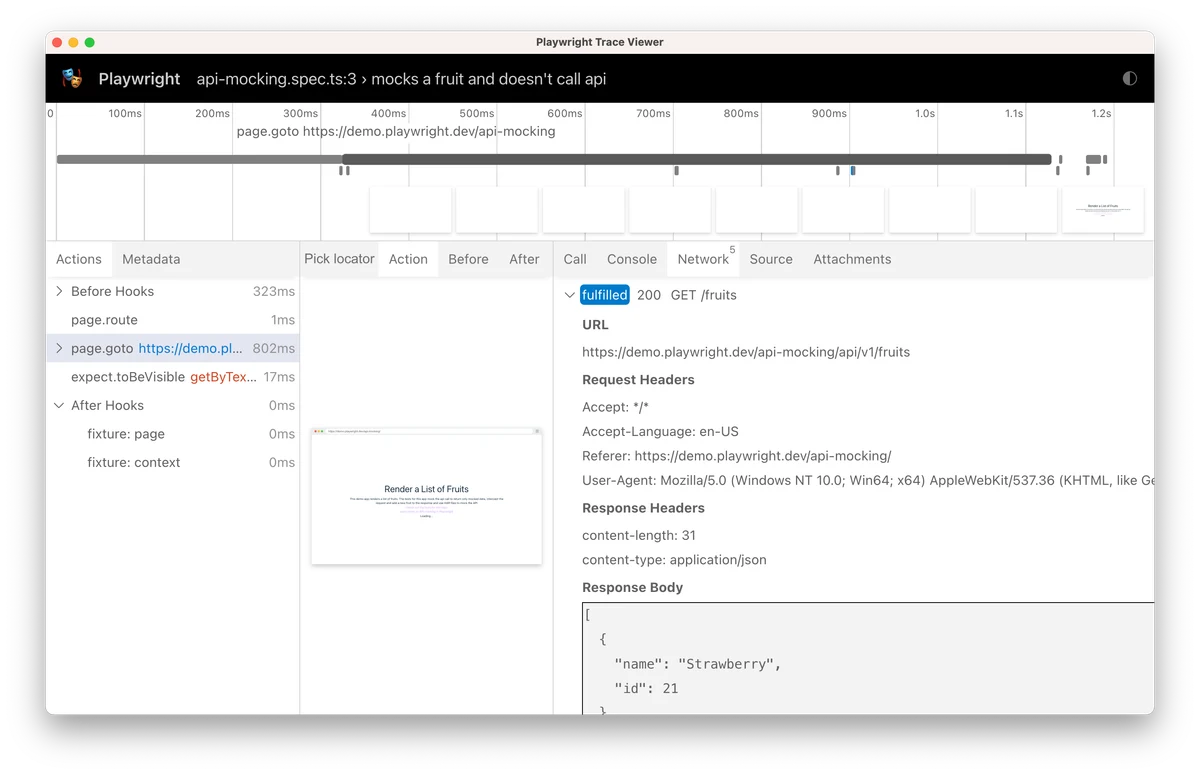
The official trace screenshot illustrates a mocked response in Playwright’s own fruit example. It does not show this tutorial being executed. When inspecting your own trace, look for the intended endpoint and response body before concluding that you tested a failure.
A mock bypasses the real lead service. It cannot establish that authentication works, a database committed the request, a CRM accepted it, or a notification arrived. Follow it with a separate staging integration check using synthetic data and a controlled destination. Compare the returned reference with the stored record. Do not count a mocked 201 response as a captured lead.
npx playwright test tests/lead-form.spec.js5. Expand the checks around the visitor’s next action
After this scenario works, add separate cases that reflect your own acceptance criteria. Ask the AI assistant to implement a specific failing requirement, keep the test unchanged while reviewing the fix, and inspect the resulting diff. This helps prevent a builder from making a test pass by removing the behavior you actually wanted.
- Validation: missing required information produces a clear message and no lead request.
- Pending state: a deliberately delayed response disables submission until it completes.
- Keyboard use: Tab reaches each control in a sensible order and Enter can submit the completed form.
- Layout: at narrow widths, errors and the submit button remain readable and reachable.
- Recovery: a network interruption retains the brief and explains how the visitor can retry.
Sources & further reading
Connect your website experience to a working lead process
Sociologix can help define, build and verify AI-enabled websites and their lead workflows. Bring your current form, destination tools and the failure cases your team needs to handle.
Talk to Sociologix