Automation · · 5 min read
XlsxWriter: keep AI lead exports as literal Excel text
Create a review workbook that preserves phone numbers and identifiers, keeps formula-looking notes as text, and checks the generated XLSX structure before a handoff.
By Sociologix Editorial
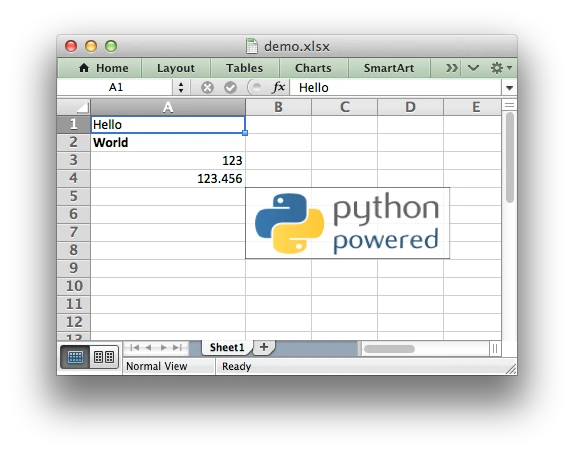
Keep a review note from becoming a spreadsheet instruction
An AI worker can prepare a useful lead summary, then lose important details during export. A phone number needs its leading plus sign; an account identifier may need its leading zeroes. A note beginning with an equals sign should remain a note when the receiving team expects a text-only review file.
This AI-assisted editorial guide builds that narrow export step with Python and XlsxWriter. It uses fictional records and inspects the resulting XLSX package. It does not call an AI model, verify a prospect, send outreach or connect to a live CRM. The result is a review artifact, not permission to contact someone.
1. Pin the version and define a text-only contract
We tested XlsxWriter 3.3.1 with Python 3.13.15 on Windows on November 10, 2026. The project documents Python 3.8 or later and a BSD-2-Clause license. [1] Version 3.3.1 matters here: its October 28 release fixed an array-formula conversion that could bypass the strings_to_formulas setting. [2]
For this exercise, each record has exactly three text fields: lead, contact and note. We cap a batch at 1,000 rows and each value at 1,000 UTF-16 code units, well below Excel’s cell limit. An emoji can consume two units. These are our demonstration policies, not universal CRM requirements.
Run these PowerShell commands in a new folder. Save the following Python block as export_leads.py before the final command. Installation needs internet access; the example itself uses no network.
mkdir xlsx-review-demo
cd xlsx-review-demo
python -m venv .venv
.\.venv\Scripts\python.exe -m pip install "XlsxWriter==3.3.1"
# Save export_leads.py below first.
.\.venv\Scripts\python.exe export_leads.py
2. Write text explicitly, then return a complete file
XlsxWriter’s generic write() method chooses a cell type from the value. It can turn formula-looking strings into formulas and supported URL strings into hyperlinks. The workbook defaults enable those two conversions; numeric-string conversion is disabled by default. [3]
The adapter below disables all three conversions and uses write_string() for every header and data cell. We also check its return value instead of ignoring a failed write. [4] The application owns the sheet name, column order and destination filename; an AI response supplies only field values.
Validation happens before workbook creation. The file is assembled in memory and returned after the workbook closes successfully. Only then does the example write review.xlsx. A validation failure therefore does not replace that file; any older copy still needs to be distinguished from a newly successful export.
from io import BytesIO
from pathlib import Path
import xlsxwriter

FIELDS = ("lead", "contact", "note")


def export_leads(rows):
    if not isinstance(rows, list) or not 1 <= len(rows) <= 1000:
        raise ValueError("Provide 1 to 1000 rows")
    for row in rows:
        if not isinstance(row, dict) or set(row) != set(FIELDS):
            raise ValueError("Each row needs lead, contact and note")
        for value in row.values():
            if not isinstance(value, str):
                raise ValueError("Text fields must be strings")
            units = len(value.encode("utf-16-le")) // 2
            if units > 1000 or any(
                ord(c) < 32 and c not in "\t\n\r" for c in value
            ):
                raise ValueError("Text exceeds the export policy")

    output = BytesIO()
    with xlsxwriter.Workbook(output, {
        "strings_to_formulas": False,
        "strings_to_urls": False,
        "strings_to_numbers": False,
    }) as book:
        sheet = book.add_worksheet("Review")
        sheet.set_column("A:C", 32)
        sheet.freeze_panes(1, 0)
        for col, field in enumerate(FIELDS):
            if sheet.write_string(0, col, field) != 0:
                raise ValueError("Header write failed")
        for row_num, row in enumerate(rows, start=1):
            for col, field in enumerate(FIELDS):
                if sheet.write_string(row_num, col, row[field]) != 0:
                    raise ValueError("Text write failed")
    return output.getvalue()


if __name__ == "__main__":
    rows = [{"lead": "Demo Harbor", "contact": "+14075550123",
             "note": "=1+1"}]
    Path("review.xlsx").write_bytes(export_leads(rows))
    print("Created review.xlsx; no outreach sent")
3. Check the package, not just the filename
The demonstration printed Created review.xlsx; no outreach sent. In the generated worksheet XML, C2 referred to the literal shared string =1+1. There was no formula element. The contact cell retained +14075550123, and a separate identifier fixture retained 000042 as text.
Eleven local tests passed. They covered formula and array-formula-looking strings; URLs without hyperlink records or worksheet relationship files; phone and ID prefixes; Unicode, XML punctuation and multiline text; the ASCII limit; the emoji limit; missing, extra and nonstring fields; control characters; row limits; empty text; and a default-write comparison.
The comparison deliberately used ordinary write() with =1+1 and found one formula element. That control makes the difference observable. For the text adapter, the tests opened the XLSX as a ZIP archive using Python’s standard library, resolved shared strings and inspected worksheet elements. They did not execute any spreadsheet formula or open Excel or LibreOffice.
To reproduce the key checks in your own test suite, require cell type s for exported text, compare each resolved value with its input, and assert that formula and hyperlink elements are absent. Check worksheet relationship files too. A file that merely exists is weak evidence that the handoff preserved its intended meaning.
4. Keep the boundaries visible
Our 1,000-unit check accepts 500 emoji and rejects 501. It accepts 1,000 ASCII characters and rejects 1,001. A null control character is rejected; tabs and line breaks are allowed. Empty text is accepted deliberately, so required nonempty contact details would need a separate business rule.
This is not a claim that the lead data is accurate or that copied data will remain text forever. Saving as CSV, pasting into another workbook or editing a cell can change interpretation. Recheck the receiving tool and export format. Actual Excel and LibreOffice display behavior was not tested in this run.
If you need numeric amounts, add a separately validated numeric column with explicit currency and precision rules. Do not turn every field into a number to suppress spreadsheet warnings. Keep formulas and clickable links under application control rather than adding them from model-generated text.
XlsxWriter creates new workbooks; it cannot read or modify an existing workbook. [5] A production workflow also needs authenticated downloads, appropriate retention, source-record references and an explicit review state. None of those controls comes from choosing a spreadsheet library.
Sources & further reading
Make your AI handoffs easier to review
Sociologix can help map your lead intake, AI preparation and approval steps, then build a traceable export that fits the way your team reviews work. Bring a sample field list and the system that receives the file.
Talk to Sociologix